Configuring Custom Calculation Rules
When a pack segment is selected in the tree control on the Line Pack page, the Calculation rules box at the bottom of the screen becomes enabled. This is where the inputs used to calculate the Line Pack for the selected pack segment are configured.
|
Calculation rules |
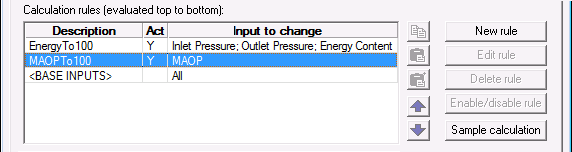
One of the features of the Line Pack application is the ability to create precedence rules for determining the inputs. Based upon changing conditions in the field, it may be appropriate to use different inputs for the same calculation. A compressor station may be shut down, or a sensor may stop responding. When looking at the list of calculation rules, the rule at the top has the highest precedence and will be evaluated first.
If any rule fails to evaluate as true, the next rule will be evaluated, and so on down the list of rules. Every pack segment has a <BASE INPUTS> rule by default. This rule represents the inputs to be used if none of the custom rules are used, or if the custom rules don’t specify every input. If an input is specified multiple times, the instance with the highest precedence will be used. This rule cannot be deleted and will always appear in the bottom of the rules list.
It is recommended that the Base Inputs rule be specified before creating custom calculation rules.
See the following subsections below for more information:
Base Inputs Rule
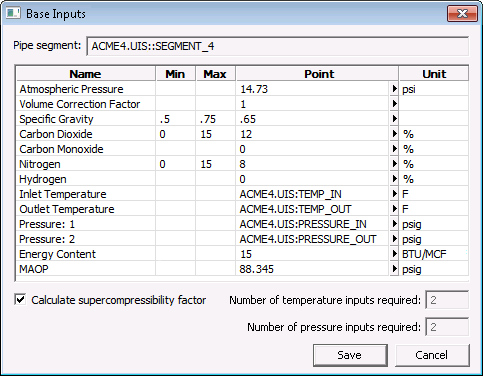
To configure the base inputs, double-click the <BASE INPUTS> rule in the Calculation Rules grid. Each of the inputs listed have fields for Minimum value (Min), Maximum value (Max), Point, and Unit for the selected pipeline segment.
Note: The Base Inputs listed in this dialog box differ depending on the contents of the pipeline; the examples on this page are for a natural gas Line Pack system.
|
Click the thumbnail to see |
| Column | Description |
|---|---|
|
Name |
The list of base inputs defined for the selected pack segment. |
|
Min and Max |
The Min and Max fields can be set to specify a range for the input. One, both, or neither of the fields can be set. If a value specified by a custom rule is out of range, a warning will be generated and the value from the base inputs is used. If the value specified by the base inputs is out of range, then it is considered a bad input and it will follow the Bad Input Action behavior specified in the Calculations page. The inputs used by the selected supercompressibility formula will be automatically range checked to meet the specifications of the formula. |
|
Point |
The Point column specifies the value to use if an input is not specified or set by a custom calculation rule. The value can either be a set value or the value (65) of the specified point (ACME4.UIS::TEMP_IN).
|
|
Unit |
The Units column specifies the units for the input. The units cannot be changed. If a point is specified for the input value, the units of the point record must be convertible to the units of the input (for example, kelvin to Fahrenheit). An input with no units specified has no requirement for units within the point record. The Point column can hold either a point tag or a static value. The temperature and pressure inputs will have as many ordinalized inputs available as are configured on the Calculations page. |
Other Base Inputs Settings
| Option | Description |
|---|---|
|
Calculate supercompressibility factor |
Note: This option applies only to natural gas. If enabled, the inputs required to calculate the supercompressibility factor will be presented. If disabled, a single supercompressibility input will be displayed. |
|
Number of temperature inputs required |
The number of ordinalized temperature inputs required for the calculation. For example, a pack segment can be configured so that 3 of the 6 available temperature inputs must be valid to calculate Line Pack, and any additional inputs above the required 3 will be used if available. If the number of inputs required is not met, then it is considered a bad input and it will follow the Bad input action behavior specified in the Calculations page. Note: This field can only be edited if Average temperature formula is set to Arithmetic mean on the Calculations page. |
|
Number of additional pressure inputs required |
The number of ordinalized pressure inputs required for the calculation. This number does not include the Inlet and Outlet Pressures. Note: This field can only be edited if Average pressure formula is set to Arithmetic mean or Complex arithmetic mean on the Calculations page. |
Creating Custom Rules
Once Base Inputs are specified, custom calculation rules can be configured.
| Button | Description |
|---|---|
|
|
Copy the current rule to the clipboard. |
|
|
Paste the rule from the clipboard into the current pack segment. |
|
|
Paste the rule from the clipboard into the current pack segment, but first a dialog box is presented letting you change all the tags. |
|
|
Move the currently selected rule up the list, increasing its precedence order. |
|
|
Move the currently selected rule down the list, decreasing its precedence order. |
|
New rule |
Create a new rule. |
|
Edit rule |
Edit the currently selected rule. |
|
Delete rule |
Delete the currently selected rule. |
|
Enable/disable rule |
Rules may be disabled to prevent them from being evaluated. Disabled rules are highlighted in red and have an N in the Act (Active) column. |
|
Sample calculation |
Shows how rules would be evaluated given the current conditions and executes a sample calculation. All the calculations are done locally on the screen and will not affect the system. See Sample Calculation for an example. |


Creating or Editing a Custom Rule
Click the New rule or Edit rule button on the Line Pack page to open the Calculation Rules dialog box to specify condition statements. If a conditional statement evaluates to be true the adjusted inputs will be used as inputs to the calculation rule.
|
Click the thumbnail to see |
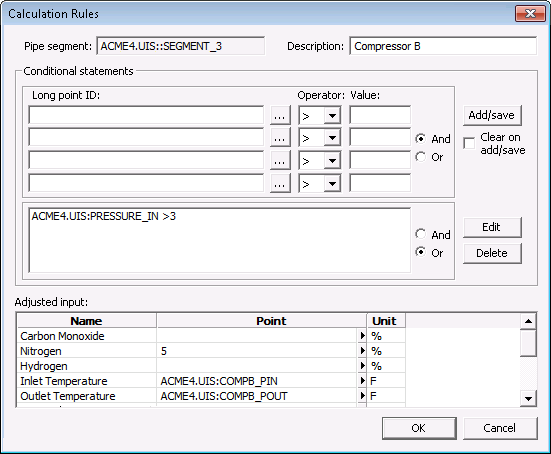
The properties for each section of this dialog box are described below.
| Property | Description |
|---|---|
|
Pipe segment |
The facility of the pipeline segment to which this rule applies. |
|
Description |
Textual description of the rule. |
|
Conditional statements |
Specifies the conditional statements that must all evaluate as true for this rule to be used. Up to four comparative statements can be entered at a time and can either use the logical operator And to narrow the selection, or the operator Or to widen the selection.
|
|
Adjusted input |
Inputs to use if this rule evaluates to be true. At minimum, one input must be specified. Either a point or a static value may be entered. Note: The Adjusted Inputs listed differ depending on the contents of the pipeline. |
To Create a New Custom Rule
- From the Line Pack page click the New rule button.
- Enter a description.
- Enter Conditional statements by browsing for the appropriate Long point IDs, and using the Operator and Value fields to construct the statements to be evaluated.
- Click Add/save to move the statements to the expression editor.
- Specify the Adjusted inputs. These values will be used as the input if the rule evaluates to be true.


